|
Add Students to the New Class
After creating a class, it will be added to the list of classes. It will be shown as "INACTIVE".
.jpg)
Figure 83: The create new class entry form. Default class names have been entered automatically, but these can be changed
Add students to your class by clicking on the class row.
This opens a class details page where you will manage all aspects of the class.
Click on the blue “Add Students” button.
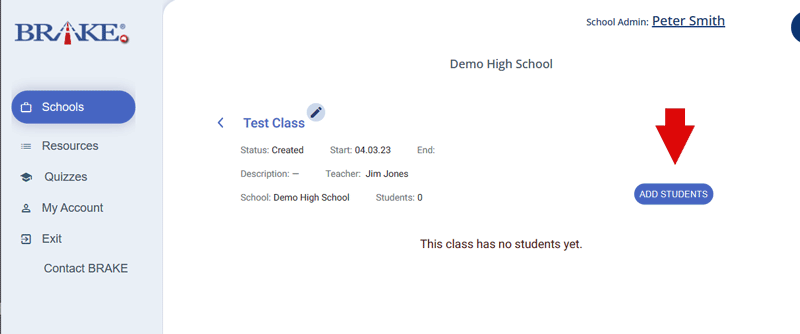
Figure 84: If the class is created under the Classes Main Menu, you will need to select a teacher from the popup teacher dialog
After clicking “Add Students” you will have three options to choose from.
.svg)
Figure 85: The add student dialog gives you two ways to enter student information
To add students individually select “Use a form”.
.svg)
Figure 86: The add individual form
This option is useful for adding individual students but is time-consuming if you need to add a group of students.
The most effective way to add students is to click “Download Excel Template”.
.png)
Fill in the template with all of the information.

Gender and date of birth are helpful for validation and ongoing research into the BRAKE program methodology — for example, the different responses of males and females to road safety information.
A few points:
The LUI number must be valid, unique, and ten numbers long
The email address should be the student's school email, and the email address must be unique
The date format is the standard Australian format – day/month/year
Only one space between first and last names
Save the spreadsheet in a folder on your computer.
Now click “Upload from Excel File”.
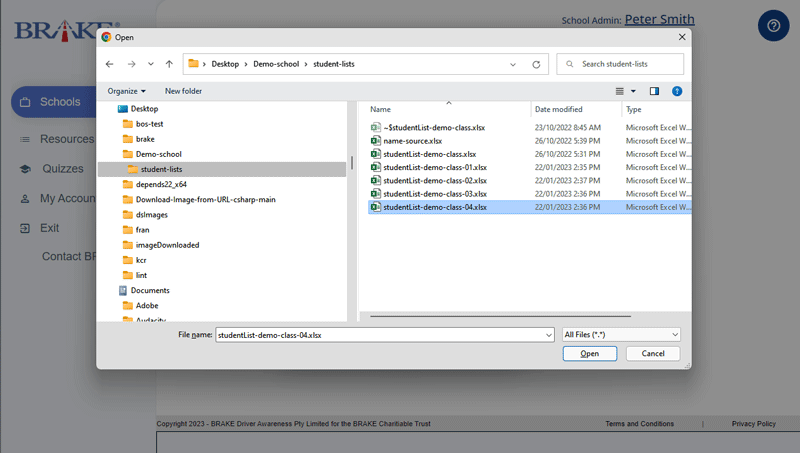
BOS will import your student data and validate it, showing you any errors and giving you hints on how to fix them.
.svg)
It is important when completing the excel spreadsheet to not press space after you complete a student’s first or last name. Once you upload the excel file, BOS will give you the error in the photo. To fix this, delete the extra space between the first and last names.
Once you have fixed any errors, the “Save” button will now appear blue. Click save and your students are now in BOS.
.svg)
Within BOS, you now see the list of students registered for this BRAKE Driver Awareness class. It is vital that all students who attend the class are listed.
.jpg)
Contact the BRAKE Administrator if you have any difficulties on 1800 61 15 14 or email admin@brake.org.au.
This initiative is supported by funding from the
Queensland Government's Community Road Safety Grants scheme.
|

