|
Navigating Around the BOS Application
The main navigation is main “Blue” Navigation Menu, beneath the page name and immediately above the Grey Information panel.
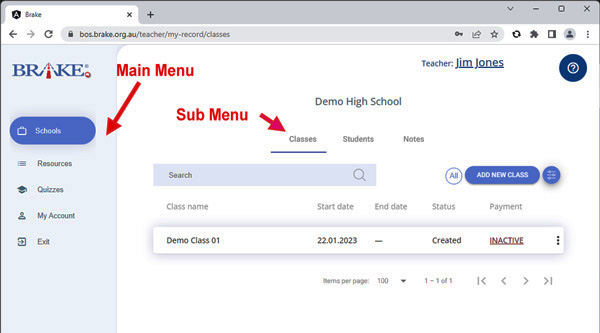
menus
Figure 20: The Current Menu choice is highlighted in a blue box on the Main Menu
The current page name is highlighted in a blue box within the menu.
As you hover over other options, a dark blue underline and a change in the text colour from black to blue will indicate that the option you are hovering over is available to you. Click this button to navigate to the new page.
CONVENTIONS
BOS uses modern application conventions for interactions, that will be familiar and easy to understand for most users.

These interactions include:
•Search - enter a search term to filter the list
•Filter icon - filter by date, name etc.
•Add New buttons to add a new instance
•Clicking a row will drill down further into the data
•Action buttons will launch processes (activate, pay, start etc.)
•Three dot more action menus will allow more complex tasks
This initiative is supported by funding from the
Queensland Government's Community Road Safety Grants scheme.
|

